Setup guide
About 5 minutes. You only type one thing: the website address in step 3. Your licence key is already inside the presets from your download.
1Open the MT5 data folder
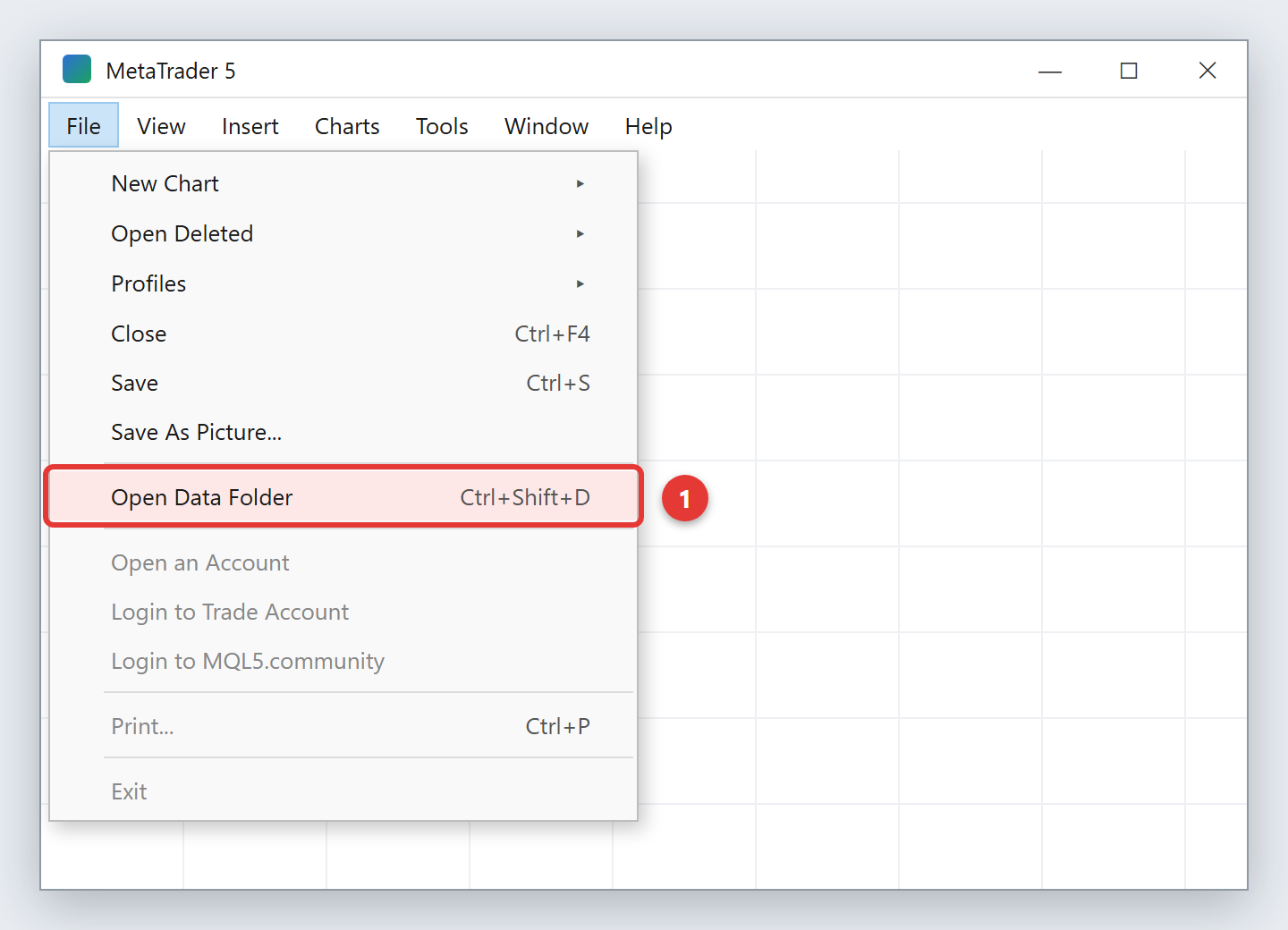
Unzip DualPendingOrder.zip. In MetaTrader 5 click File › Open Data Folder (or press Ctrl+Shift+D). A Windows folder opens.
2Copy the files
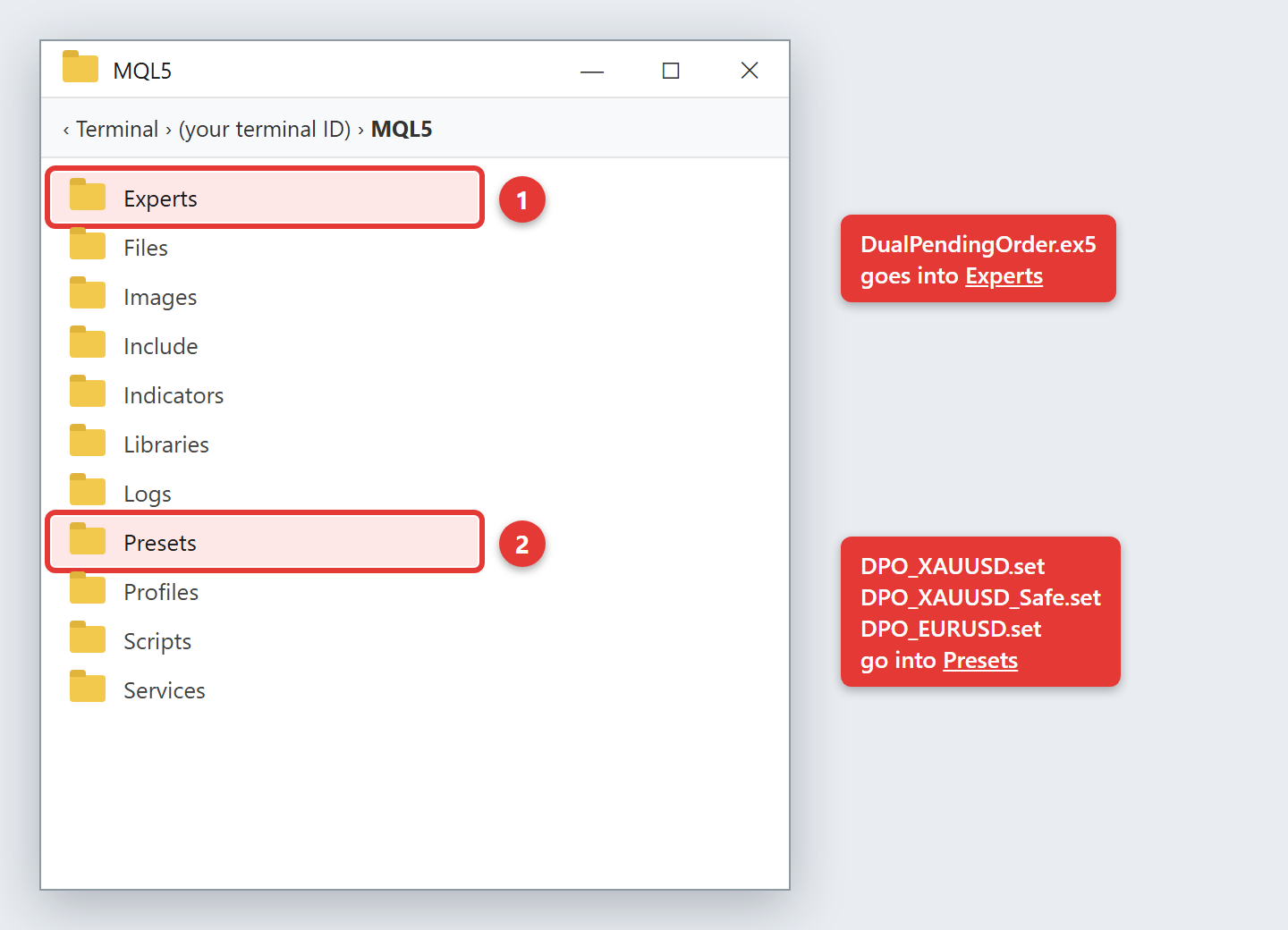
Open the MQL5 folder. Copy DualPendingOrder.ex5 into Experts, and the three .set files into Presets.
3Allow the licence check (one time)
The EA activates your licence over the internet the first time it runs on an account. MT5 only lets an EA connect to addresses you allow, so add the shop's address once:
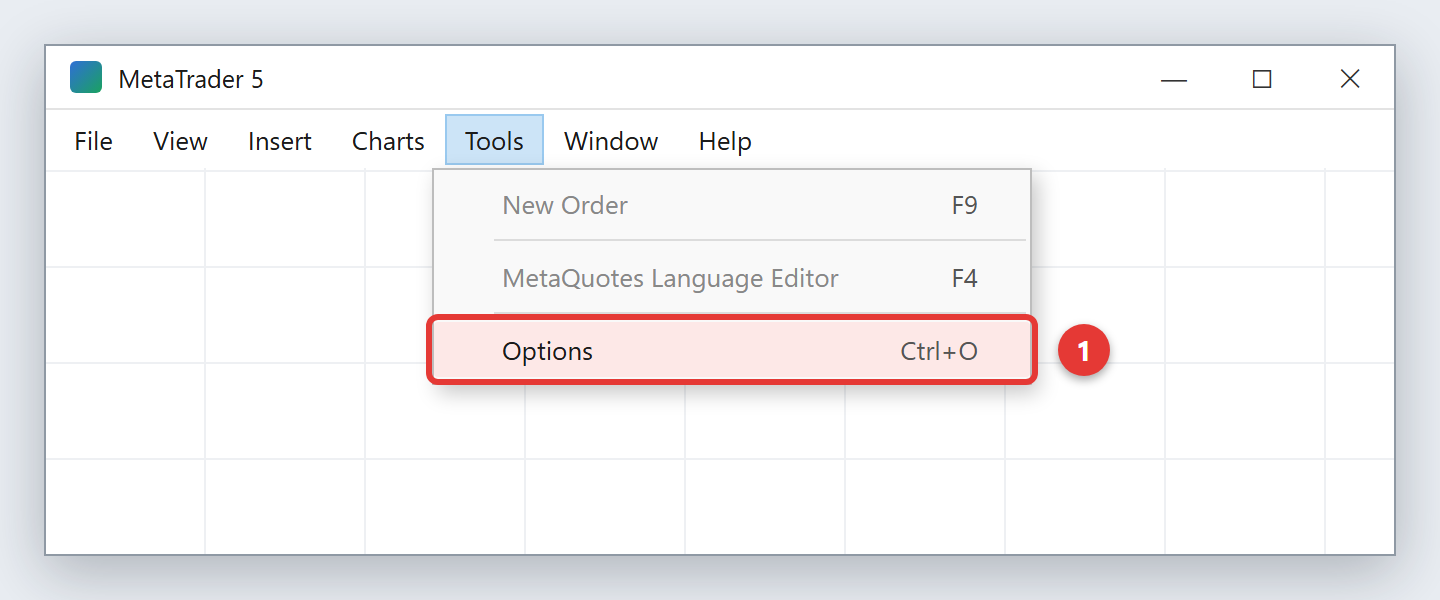
Click Tools › Options (or press Ctrl+O).
Then:
- open the Expert Advisors tab,
- tick Allow WebRequest for listed URL,
- double-click add new URL like 'https://www.mql5.com', paste the address below and press Enter,
- click OK.
https://dualpendingorder.pages.dev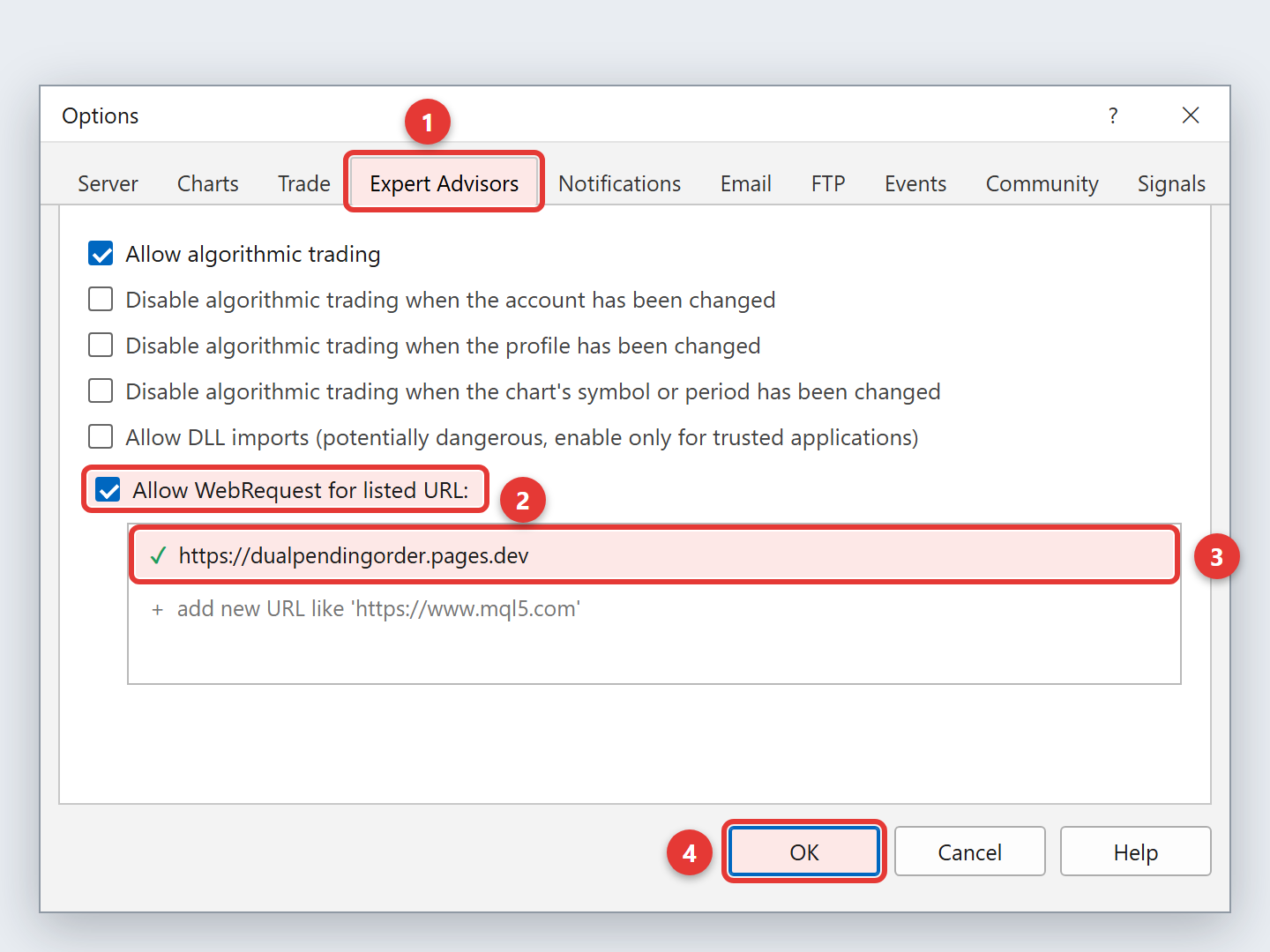
Do this once on every computer or VPS where you run the EA. Without it the EA shows “MT5 blocks the licence check” and does not trade.
4Refresh the Navigator
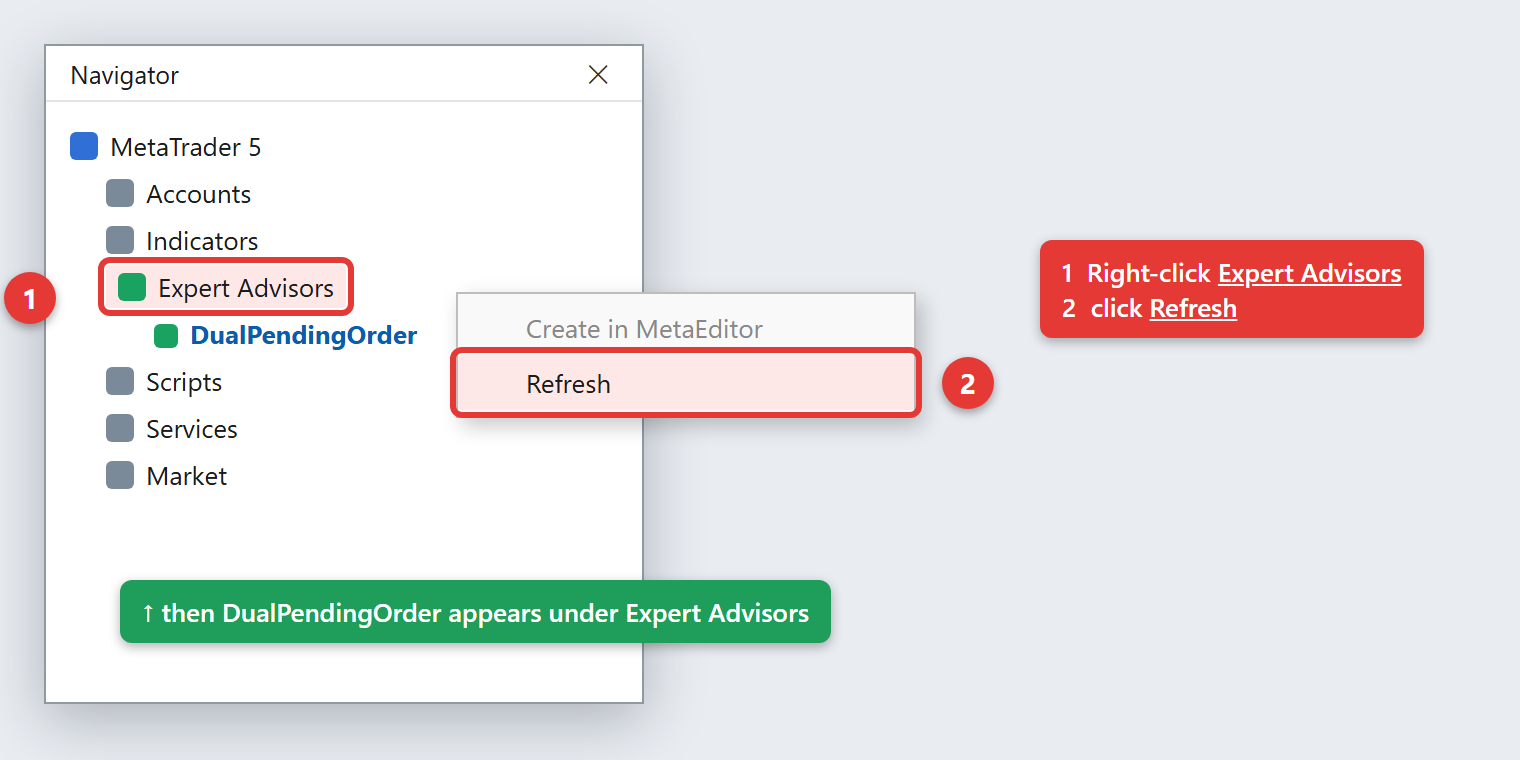
Open the Navigator (Ctrl+N), right-click Expert Advisors and click Refresh. DualPendingOrder appears in the list.
5Attach the EA to a chart
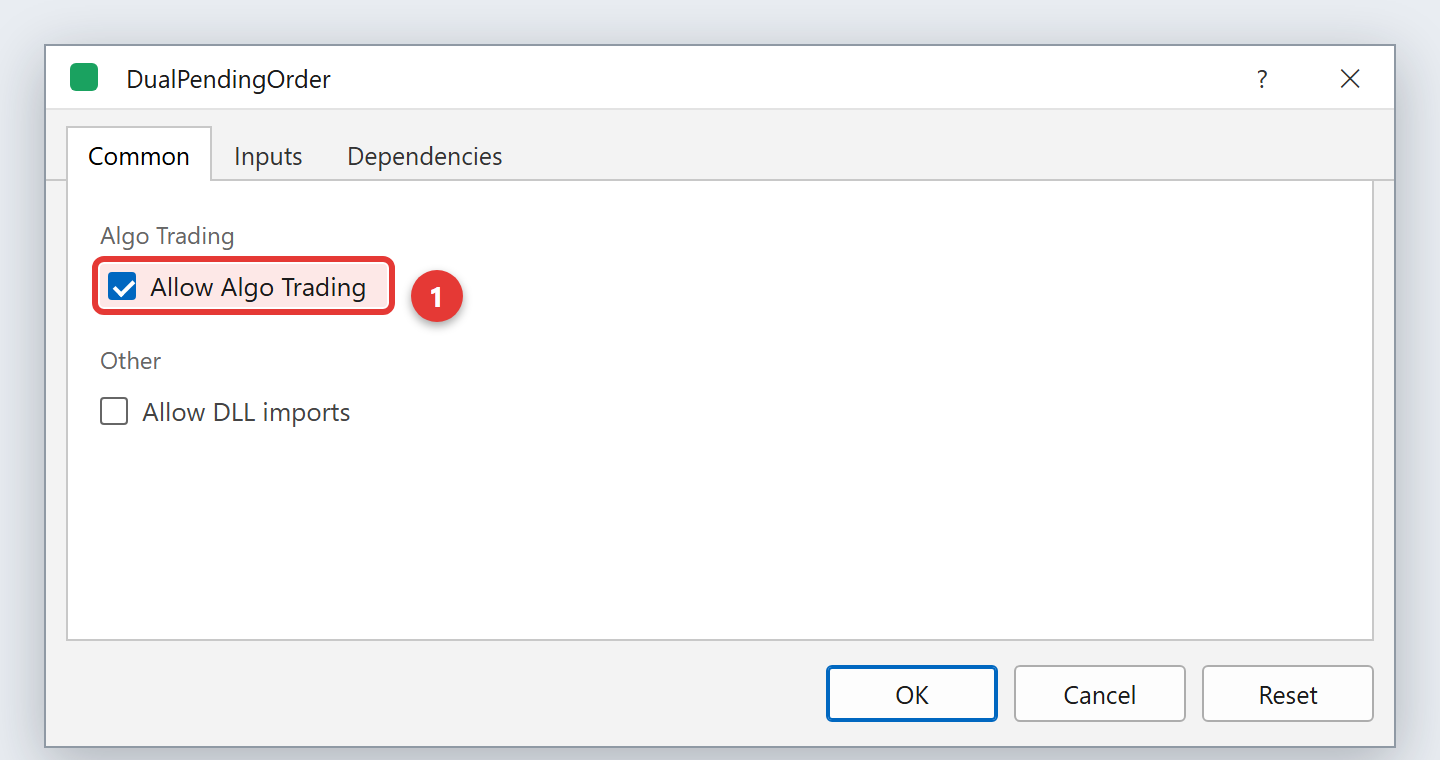
Open an XAUUSD or EURUSD chart and switch it to M1. Drag DualPendingOrder from the Navigator onto the chart. In the window that opens, on the Common tab, tick Allow Algo Trading.
6Load your preset
On the Inputs tab:
- click Load and choose the preset for the chart's symbol:
gold → DPO_XAUUSD_Safe.set (lower risk) or DPO_XAUUSD.set · EURUSD → DPO_EURUSD.set - the first line, LicenseKey, now shows your licence key – nothing to type,
- click OK.
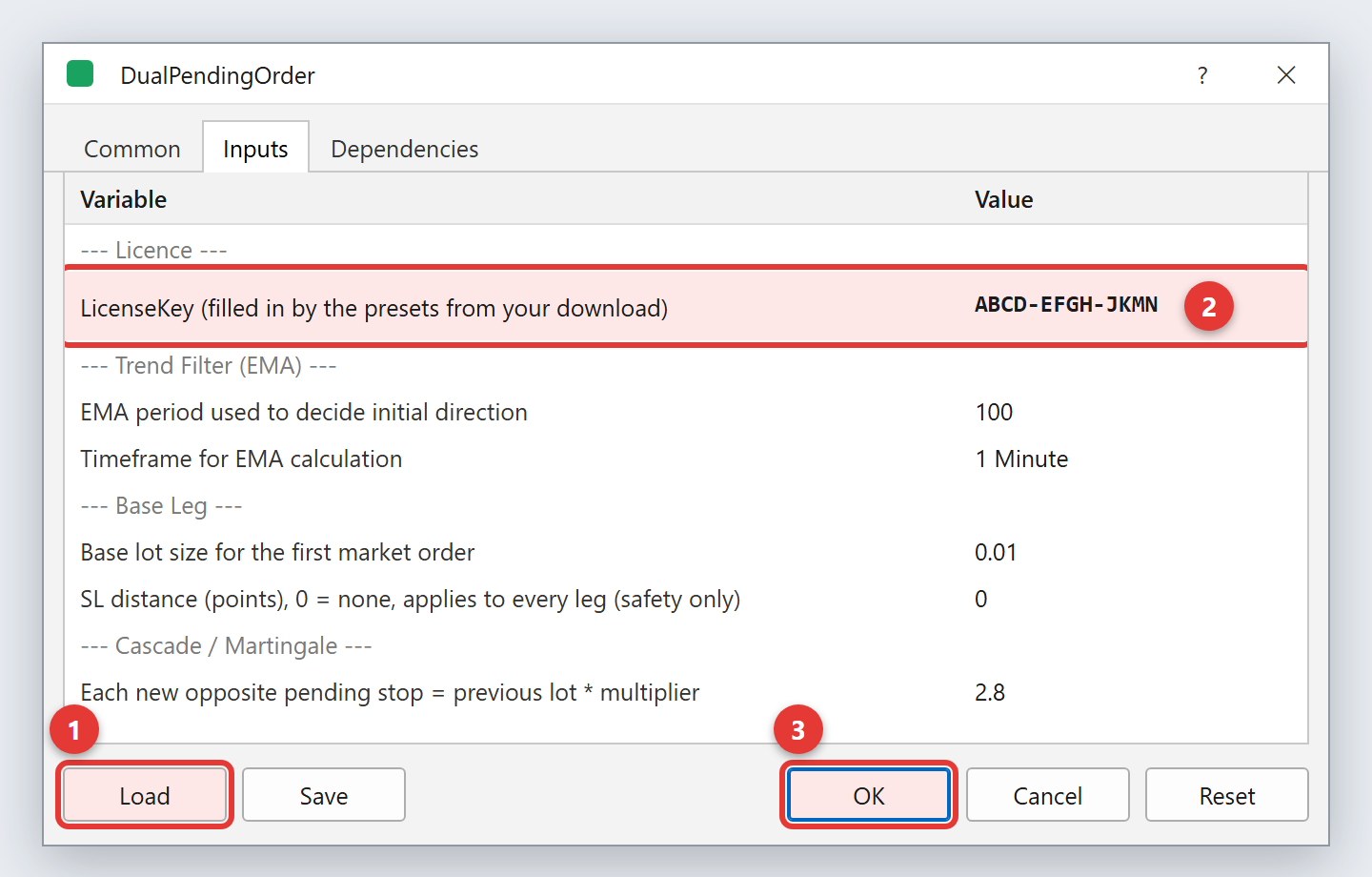
If you change settings later, leave the LicenseKey value as it is. Each preset was made for its own symbol – do not use the gold presets on EURUSD or the other way round.
7Check that it runs
- The Algo Trading button in the toolbar must be on (green).
- The EA's name shows in the top-right corner of the chart.
- In the Experts tab of the Toolbox (Ctrl+T) you see “licence active on account …”.
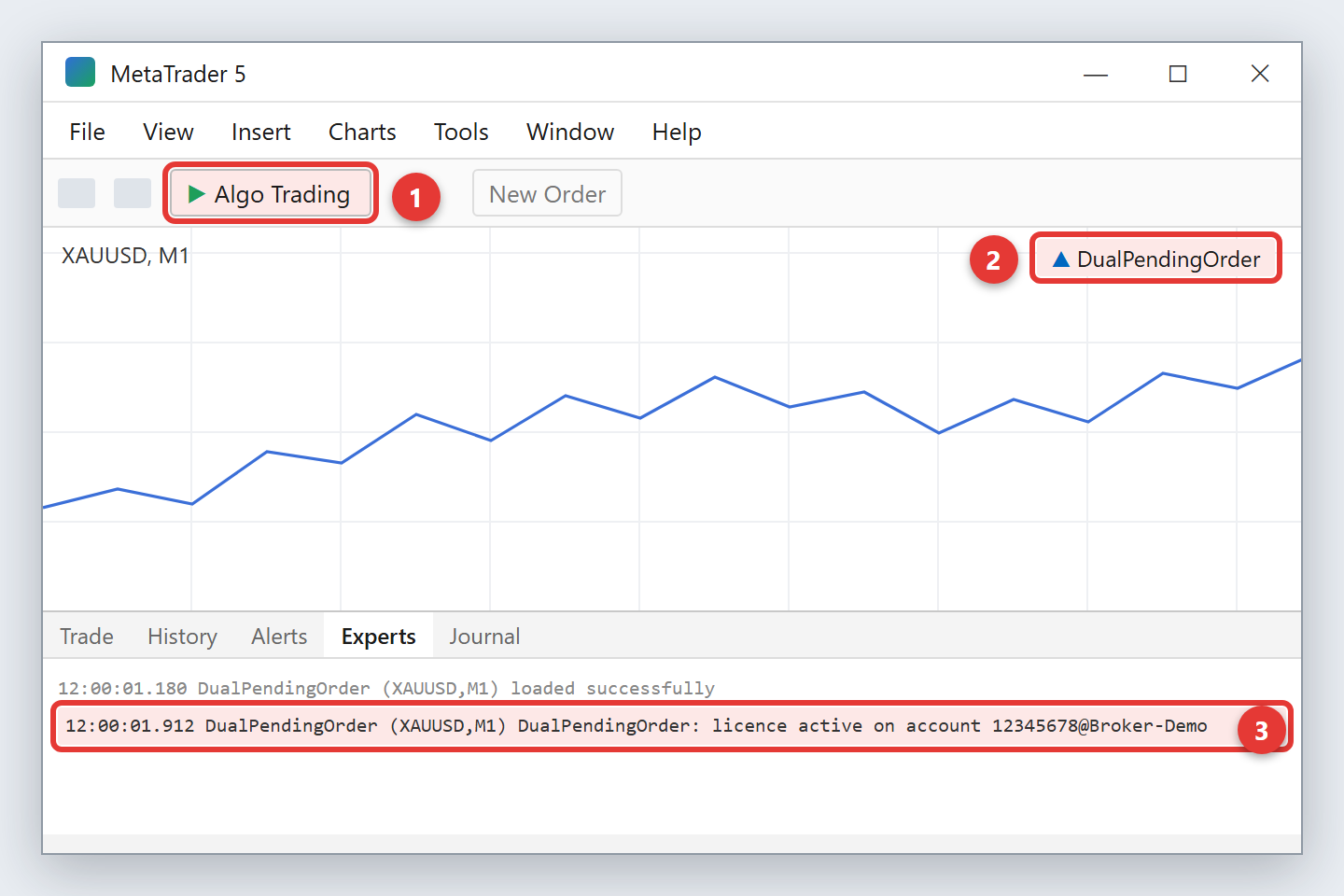
That account now uses 1 of your 10 activations. You can see your activated accounts on your licence page.
If something is wrong
The EA explains every problem in a pop-up and in the Experts tab:
| MT5 blocks the licence check | Do step 3, then remove the EA from the chart and attach it again. |
| The LicenseKey input is empty | Load one of the presets from your download (step 6). |
| This licence key is not valid | The LicenseKey value was changed – load the preset again. |
| Already activated on the maximum number of MT5 accounts | All 10 activations are used. Your licence page lists them. |
| The licence server could not be reached | Check the internet connection and attach the EA again. |
| No trades | Algo Trading must be green and “Allow Algo Trading” ticked. The Safe preset only trades 16:00–17:00 server time and waits for a big candle, so it can go days without a trade. |
The pictures above are illustrations of the MetaTrader 5 windows; your MT5 version may look slightly different. Full details on every setting, backtesting and risk are in INSTRUCTIONS.txt inside your download.